1. Upload your photo
Choose a JPG, PNG, or WebP, up to 10 MB. Uploading saves a browser draft without using credits. Check the processing status and cost before you start.
Put your product or portrait on a plain white background. Upload a photo, remove its original backdrop, and preview the subject on #FFFFFF white before downloading a JPG or PNG.
Real stock photos with prepared white-background examples. These are not live processing results. Check your own photo before saving.
or drop a photo here
JPG, PNG, WebP · up to 10 MB · 40 megapixelsTry an example:
5 free credits daily — enough for 1 image. No sign-up required.
Choose a JPG, PNG, or WebP, up to 10 MB. Uploading saves a browser draft without using credits. Check the processing status and cost before you start.
When processing is available, compare the result with your original. White is selected for you. Check faces, product details, and fine edges before saving.
Save a completed image as JPG or PNG. Downloading a finished result costs no extra credits. Keep the original photo for future edits.
PRODUCT PHOTOGRAPHY
Give your product a clean, consistent setting. A plain white background keeps attention on the shape, color, and details of the item.
Leave room around the product and check the finished edges. Marketplace rules for dimensions, margins, and framing vary, so review your platform’s requirements before publishing.
Try the white background editorPORTRAITS & TEAM DIRECTORIES
Use a consistent backdrop for a profile, portfolio, or team page. Start with a clear portrait and keep enough space around the hair and shoulders.
Compare the result with your original. Skin tones, facial details, pale clothing, and fine hair deserve a closer look before you download.
Try the white background editorDETAIL REVIEW
A white backdrop makes small gaps and uneven outlines easier to notice. Look closely around loose hair, shoulders, and fine fabric edges.
Review the original alongside the result. If you use Restore, it copies original pixels and may also bring back the old background. Read the edge editing guide.
Try the white background editorBLANK CANVAS DOWNLOAD
Need a plain white image for your next design? Choose the size and file format without uploading a photo.
Every pixel is solid #FFFFFF white. The canvas has no border or watermark, and creating it in your browser uses no credits.
Choose 1920 × 1080 for Full HD or 1280 × 720 for 720p. Custom sizes can be up to 6,000 pixels per side within 12 megapixels. This creates a blank canvas; it does not enlarge a photo.
Choose your size. Start with pure white.
FROM EDIT TO EVERYDAY USE
Pick a file that works with your shop, website, or design app. The backdrop stays white in your finished photo.
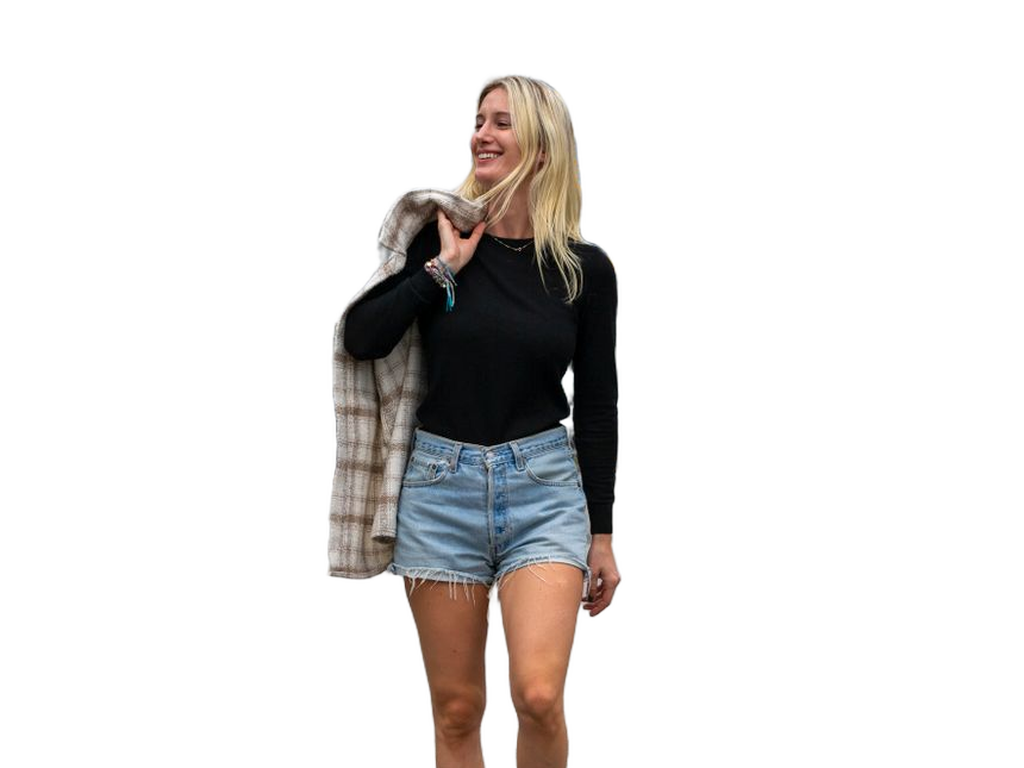 PNG
PNGDETAILS & FURTHER EDITING
Save a completed photo as PNG when you want to avoid further lossy compression. A white PNG has solid white pixels; it is not a transparent cutout.
Explore PNG output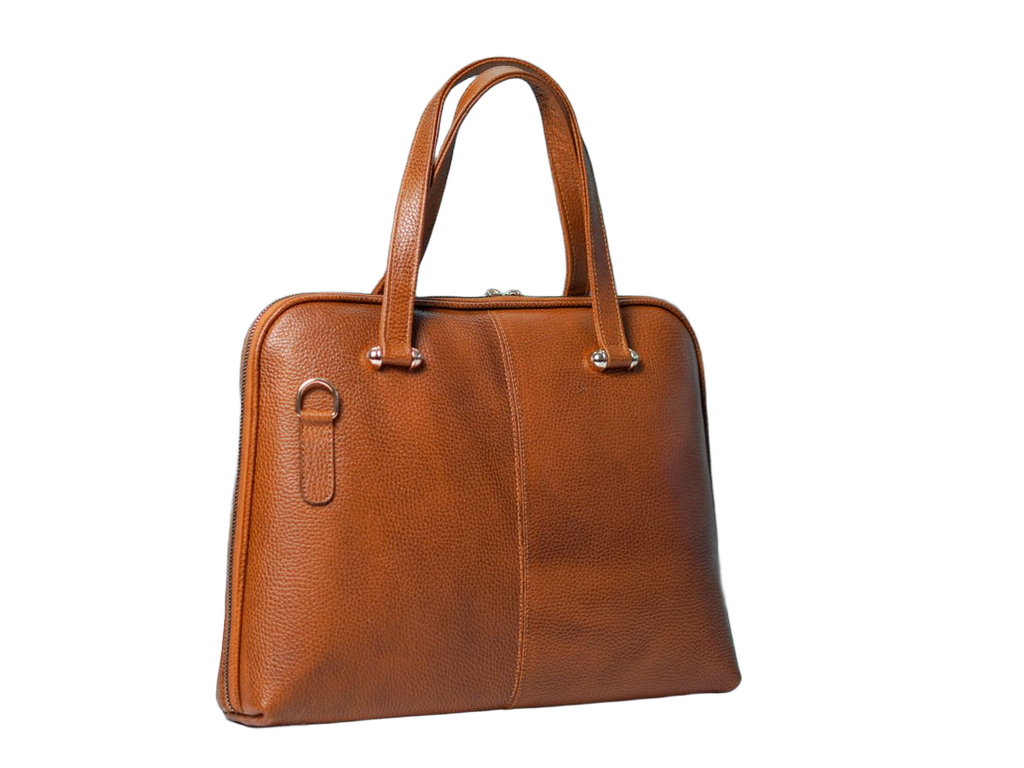 JPG
JPGPRODUCTS & EVERYDAY SHARING
Choose JPG for a finished white-background photo that is easy to share. Check the image quality and file requirements of the place where you will use it.
Explore JPG outputBLANK CANVASES FOR THE WEB
The blank canvas generator also offers WebP. This option creates a plain white image; photo results in the editor are downloaded as JPG or PNG.
Create a blank canvasPrepared example photos illustrate different uses, not a guarantee of live processing quality.
Need a transparent cutout instead?SIMPLE CONTROLS, CLEAN FINISH
Keep your original, review the result, and choose the file you need. Find your editing controls in one place.
Build a consistent look for products or portraits. Save the original if you want to revisit the crop or background later.
Try the white background editorYou receive 5 free credits daily. Fast · Preview uses 3 per image when available. Selecting a file and downloading a finished result use no credits.
Selecting a photo saves a local draft. The live tool explains when remote processing is available and which action sends your image for processing.
The white background is selected for you. Keep this finish for a clean image, or use the editor controls to explore another background.
Inspect faces, lettering, texture, and outlines. The original image is your reference for deciding whether a processed result is suitable.
Use the existing edge controls on a completed result. Restore brings back original pixels, including any background within those pixels.
Save a completed photo as JPG or PNG. A selected original or a prepared example is not a newly processed result.
From storefront photos to a new design, a consistent backdrop keeps attention on what matters. Explore a few everyday uses.
Give catalog photos a consistent white backdrop. Check product edges, framing, and your marketplace’s image requirements before publishing.
PRODUCT PHOTOSBring portraits taken in different settings together. Compare hair, skin tones, and clothing with the original before choosing the final image.
PORTRAITSCreate a consistent look for team profiles. Keep the original photograph so you can revisit the crop or choose another background later.
TEAM PHOTOSDownload a plain white canvas for a layout or presentation. Choose its dimensions and open it in the design app you already use.
BLANK CANVASLook closely at fine outlines, loose hair, fabric, and gaps. Use the original photograph as your reference when reviewing an edited result.
DETAIL REVIEWUse the same white background across a collection. Choose JPG for sharing or PNG when you want to avoid another lossy compression step.
DOWNLOAD OPTIONSIllustrative use cases · About Fremovebg · Editing help & limitations
Open the white background tool, add a photo, and check the current processing status. Your draft stays in the same workspace.
Upload a photoEXPLORE THE PHOTO TOOLKIT
PortraitsProducts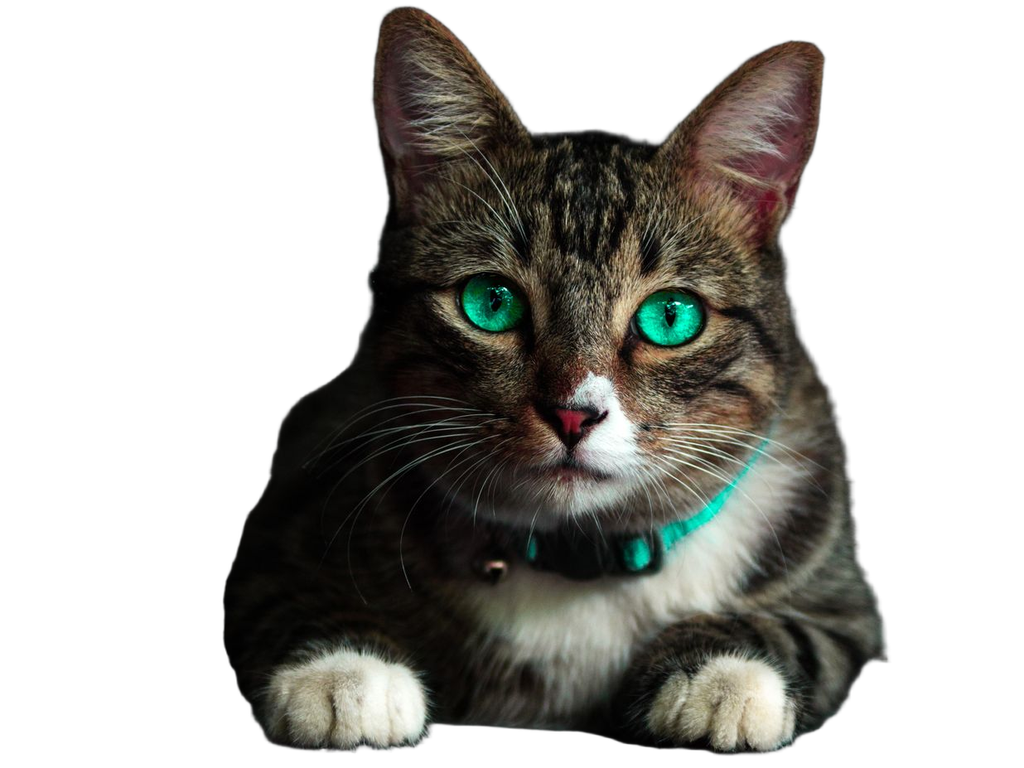 Pets
PetsProcessing an image with Fast · Preview uses 3 credits from your daily free allowance of 5 credits. Downloading your finished JPG or PNG costs no extra credits, as detailed in Pricing.
This tool adds a white background behind your subject. To remove an existing white background and keep transparency, use our general remove background from image.
Pale edges can be difficult to separate from a light background. Inspect the result before exporting. Restore copies original pixels and may also bring back the old background. See edge editing help.
Different marketplaces enforce their own image dimensions, framing, and margin requirements. Check your platform's specific image rules before publishing.
Yes. Switch to transparent output here, or visit our Background Changer to pick other solid colors or upload a background image.
Yes. Open the blank white background generator, choose dimensions and a format, and download an opaque #FFFFFF canvas. It runs in your browser and uses no processing credits.