1. Build your batch
Upload multiple images: up to 20 JPG, PNG, or WebP files, each up to 10 MB and 40 megapixels.
Organize up to 20 images in one background-removal queue. Choose a transparent or solid color finish, review each completed result, and download a ZIP. Each image needs credits; the daily free allowance covers 1 Fast · Preview image.
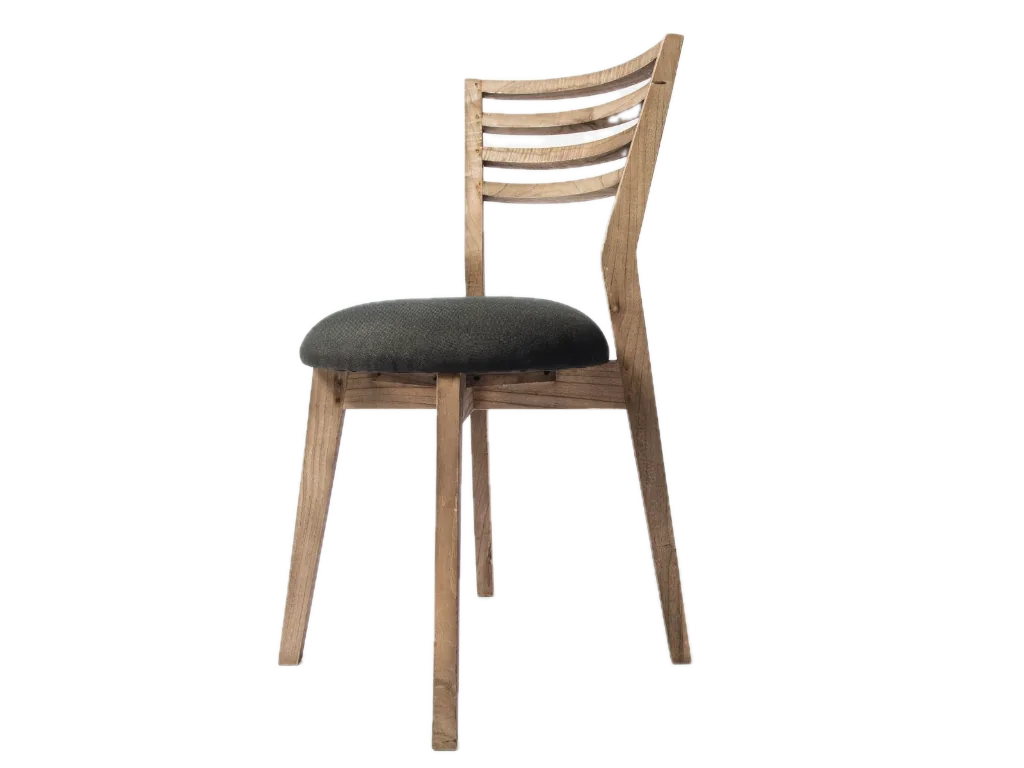
Real stock photos with prepared cutouts illustrate a batch. These are not live queue results. Review each processed image before downloading.
or drop up to 20 images here
JPG, PNG, WebP · up to 10 MB · 40 megapixelsTry an example:
5 free credits daily — enough for 1 image. No sign-up required.
Upload multiple images: up to 20 JPG, PNG, or WebP files, each up to 10 MB and 40 megapixels.
Choose transparent PNG output or a uniform solid color (including white) for the batch, then start the queue as long as you have enough credits.
Review each thumbnail as it completes. Retry individual failed images if needed, and download completed cutouts individually or together in a ZIP file.
PRODUCT COLLECTIONS
Add up to 20 images and manage them together instead of starting a new upload for each photo. Each file can be JPG, PNG, or WebP, up to 10 MB and 40 megapixels.
Every image needs its own processing credits. The daily allowance covers one Fast · Preview image; a 20-image queue is not a promise of 20 free results.
Upload multiple imagesCONSISTENT COLLECTIONS
Keep transparent PNG output for designs, or choose one solid background color for a consistent collection. White is available among the color choices.
The batch shares its finish. If you need a custom background photo and subject-position controls, open an image in the background changer.
Upload multiple imagesREVIEW EACH IMAGE
Review every completed thumbnail and compare details with the original. Retry an individual failed image when appropriate.
Only completed results enter the ZIP archive. Fine Erase and Restore edits are single-image controls, so use the background remover when an image needs that attention.
Upload multiple imagesFROM EDIT TO EVERYDAY USE
Keep transparency for another layout, or save the background you selected.
 TRANSPARENT PNG
Save transparent results individually or include completed images in the ZIP archive.
Upload multiple images SOLID COLOR
Choose a shared solid color, including white, for the batch output.
Upload multiple images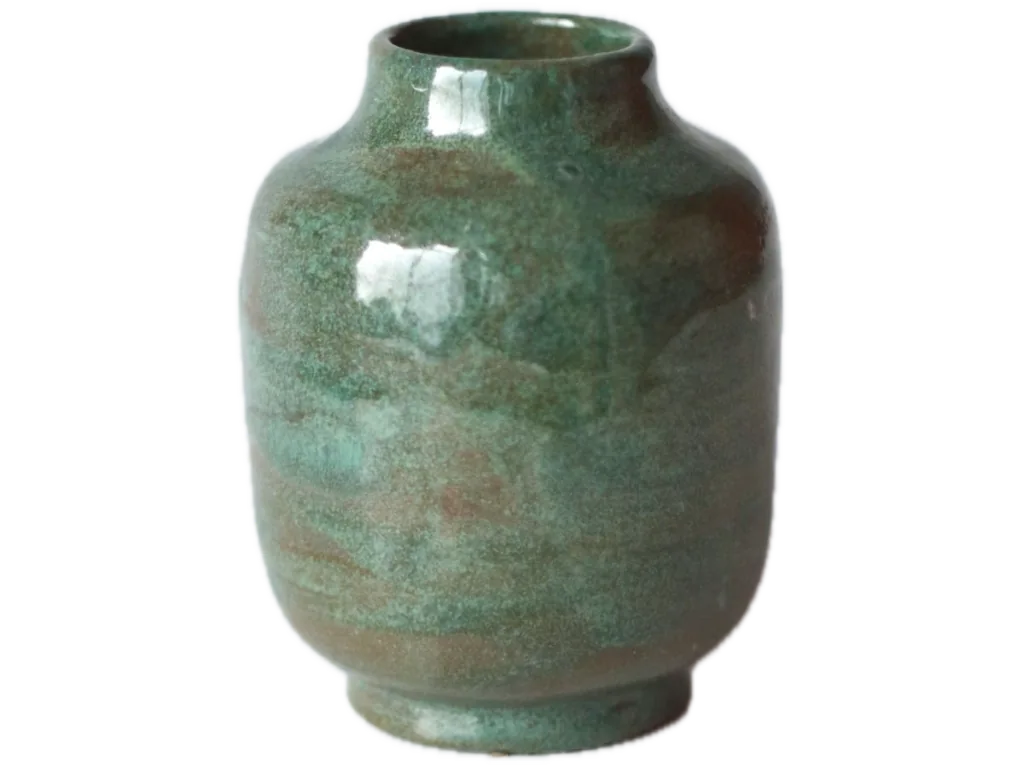 ZIP
ZIPDownload completed results in one archive. Failed or unfinished items are not included.
Upload multiple imagesPrepared examples illustrate uses of the tool. They are not live processing results.
Download helpYOUR IMAGE, YOUR FINAL CHECK
Work in the same editor, keep the original, and review the result before saving.
Real stock photos with prepared cutouts illustrate a batch. These are not live queue results. Review each processed image before downloading.
Upload multiple imagesReturn to the same browser to pick up your selected images. Uploading saves a draft without starting paid processing.
Build a queue of JPG, PNG, or WebP files, with the file limit applied to each image.
Check your balance and the model cost before starting. Queue size and free allowance are different limits.
Inspect each item’s status and retry a failed image without re-uploading the whole group.
Use your original image as the reference. AI editing can change details, so review every finished result before downloading.
Downloading a completed result does not use more processing credits. A selected original is not a processed image.
EVERYDAY USES
Prepare several products in the same session.
Give a group of objects a consistent finish.
Review a collection and collect the completed files.
Illustrative use cases · About Fremovebg · Editing help & limitations
Add your images, check the available credits, and review the batch as it completes.
Upload multiple imagesEXPLORE THE PHOTO TOOLKIT
The 20-image limit is queue capacity. You receive 5 free credits daily, and Fast · Preview costs 3 credits per image. The daily allowance alone covers one image, leaving 2 credits. Sign in to purchase additional credits. See Pricing.
Completed images remain available to download. Failed items do not enter the downloaded ZIP archive. You can retry only the failed image if you have enough valid credits.
No. Bulk processing applies one uniform finish (transparent or a chosen solid color) across the entire queue. To upload custom photographic backdrops and use positioning sliders, edit images individually in Background Changer.
Erase and Restore are available in single-image tools. Use Background Remover when a photo needs brush edits. Bulk mode does not provide per-image brush editing.
Processing reserves 3 credits per image for Fast · Preview. If a job fails, reserved credits that are still valid return to your balance. Downloading completed results uses no extra credits. See the credit rules.