01
Upload your image
Upload an image, or drop or paste a JPG, PNG, or WebP photo up to 10 MB and 40 megapixels. Save a browser draft to return to it later.
Fremovebg is a free background remover for photos and images. Remove the background from your image, review the AI result, touch up edges, and download a transparent PNG. Need a different finish? Choose white, a solid color, or your own background image.
Prepared illustrations for demonstration. Actual results depend on your photo. Final layouts are created in separate design apps.
or drop a photo here
JPG, PNG, WebP · up to 10 MB · 40 megapixelsTry an example:
5 free credits daily — enough for 1 image. No sign-up required.
MADE FOR YOUR IDEAS
A new canvas
for every idea.
From portraits to products, front and center is what matters — you.
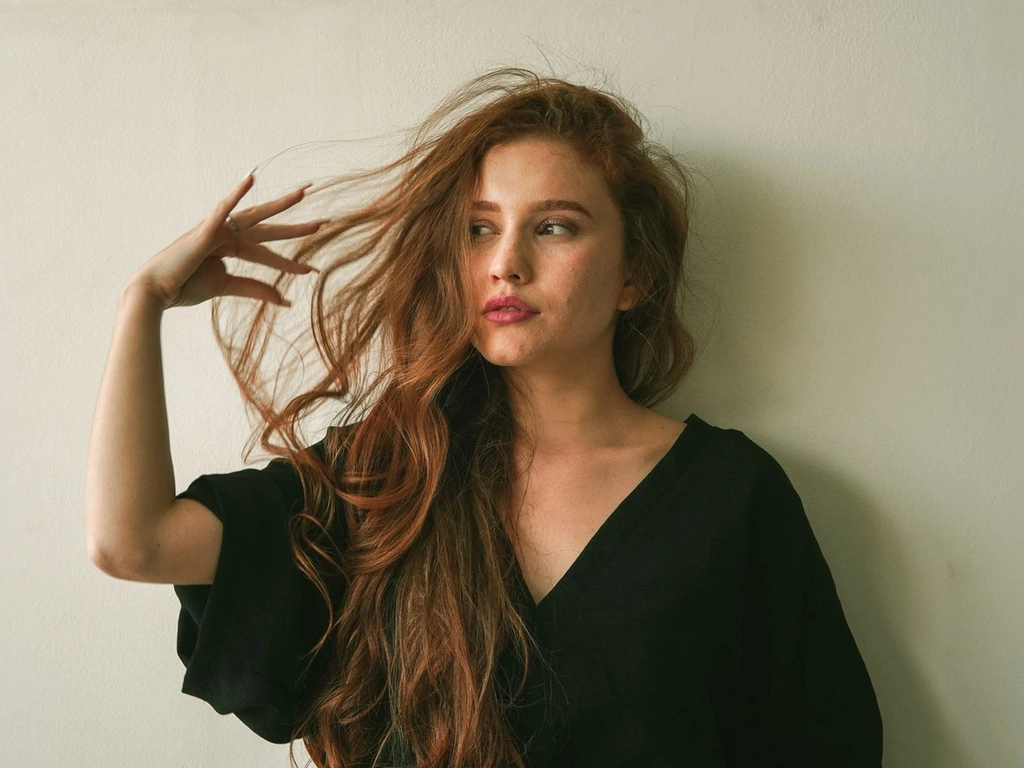
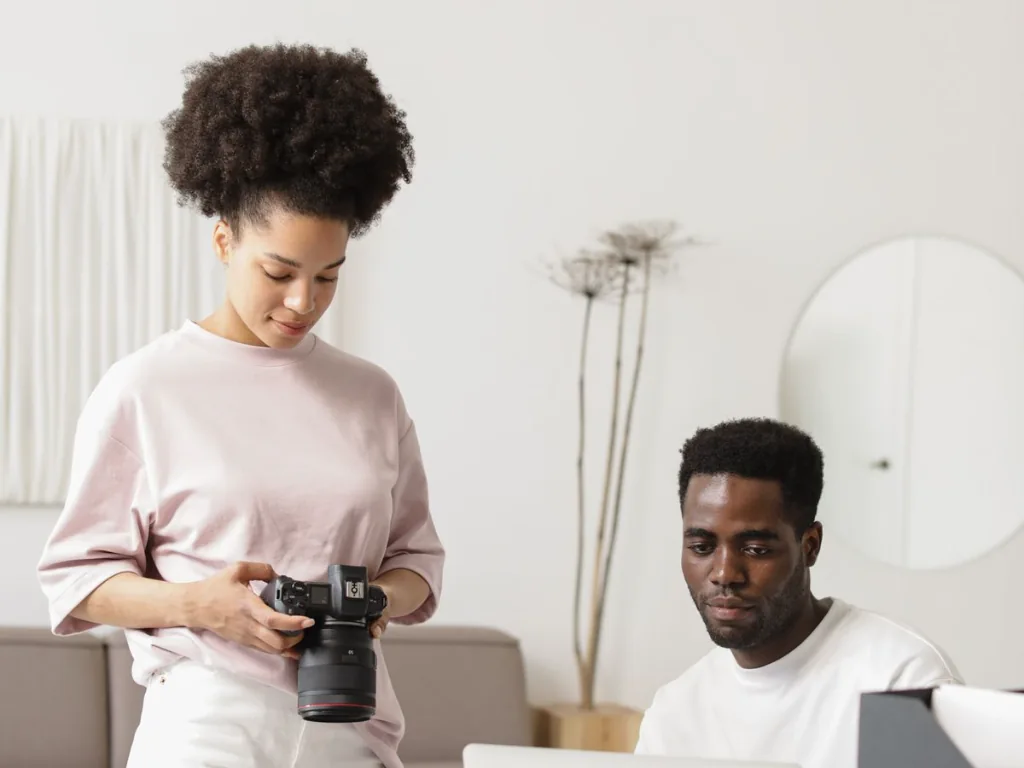
Use the photo background remover to remove a distracting room or outdoor backdrop from a portrait. Export a transparent cutout for a profile design, team page, or presentation, and check hair and clothing edges before placing it on a new background.
Upload a portraitInspect loose hair, glasses, and clothing against light and dark preview backgrounds. Use Erase for leftover background and Restore for missing original pixels. Restore can also bring back part of the old backdrop, so review each touch-up.
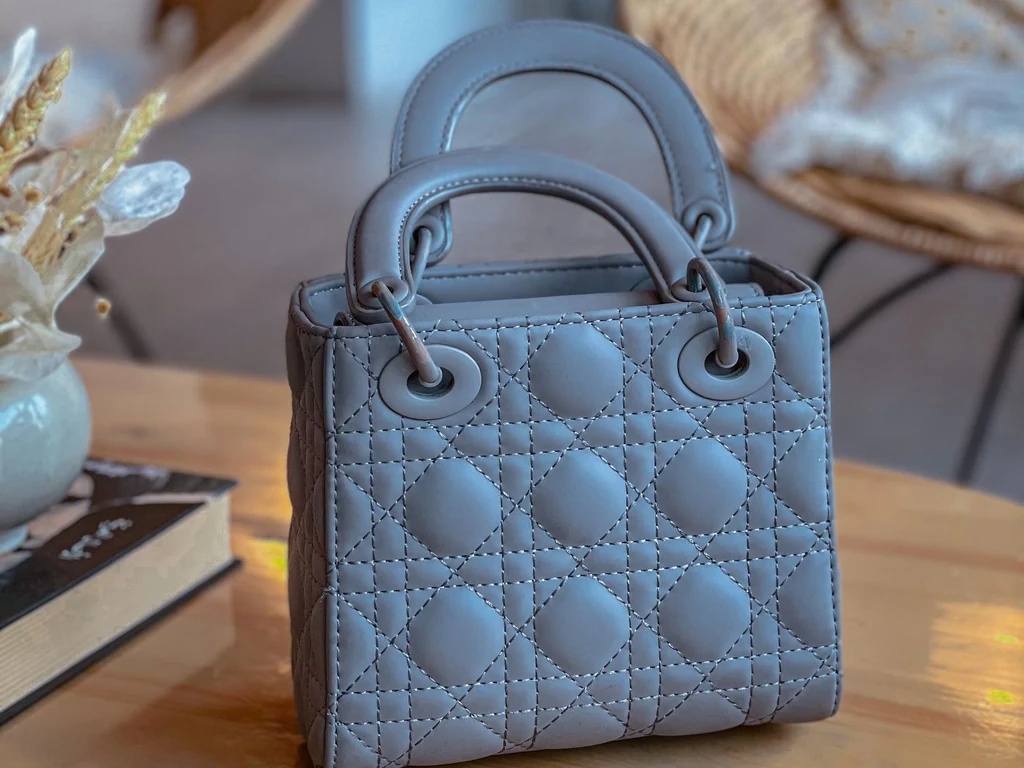
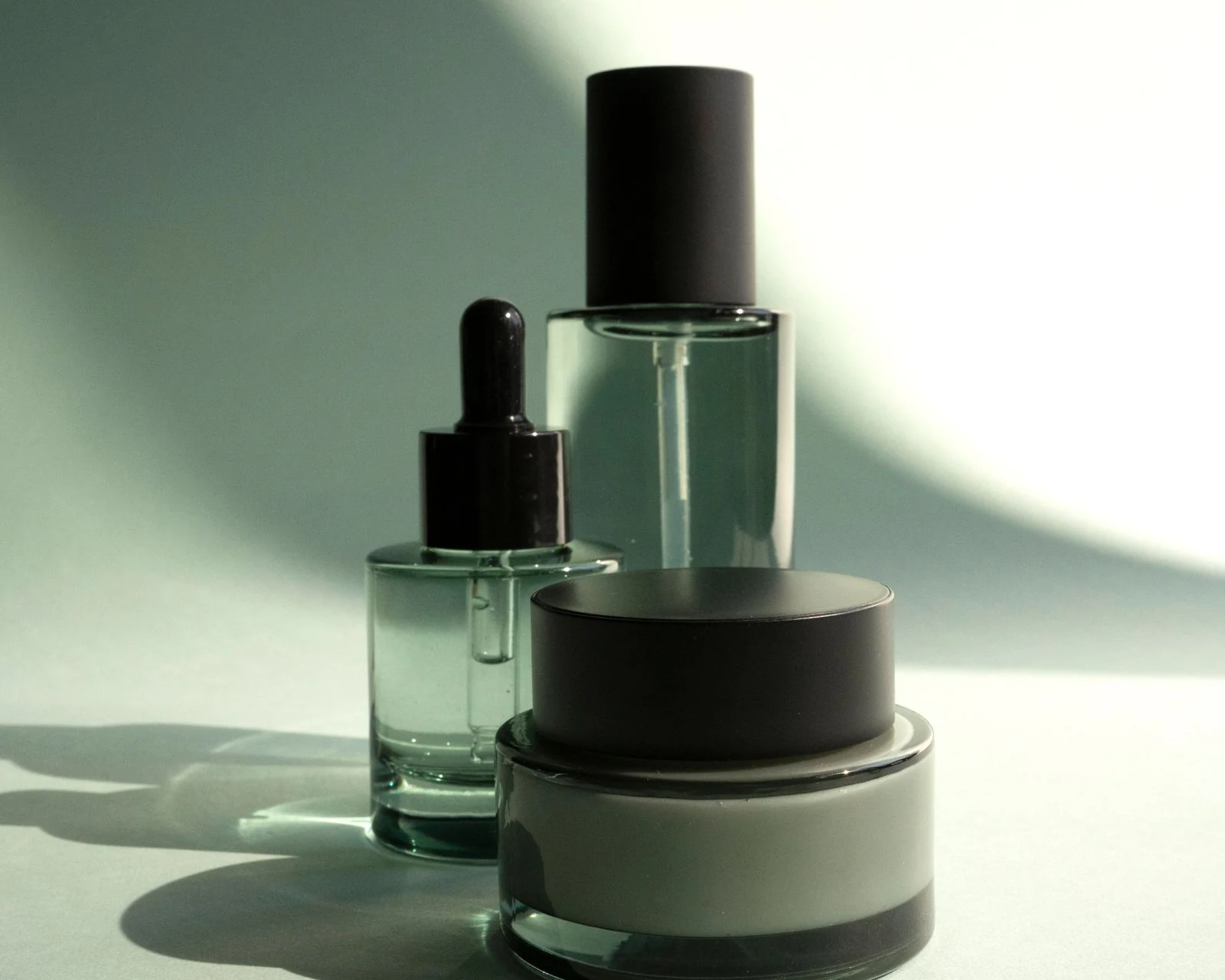
Try your own photoTurn a product photo into a cutout for a catalog, store banner, or listing layout. For a plain product backdrop, add a white background to your photo. Check the finished image against the requirements of the place where you will publish it.
Try a white backgroundUse a transparent cutout on a new backdrop without reshooting the photo. Our photo background changer lets you choose a solid color or upload your own background image, then adjust the subject size and position.
Explore background optionsPrepare a jewelry cutout for a product card or catalog layout. Chain links, narrow gaps, and reflective edges need a close look: compare them with the original and check for missing details or leftover background.
Upload a jewelry photoSeparate a car from a busy parking area for a listing or enthusiast post. Start with the whole vehicle in frame. Review windows, mirrors, wheels, and the space under the car before exporting the result.
Upload a car photoUse this image background remover in three steps, from upload to transparent PNG:
Upload an image, or drop or paste a JPG, PNG, or WebP photo up to 10 MB and 40 megapixels. Save a browser draft to return to it later.
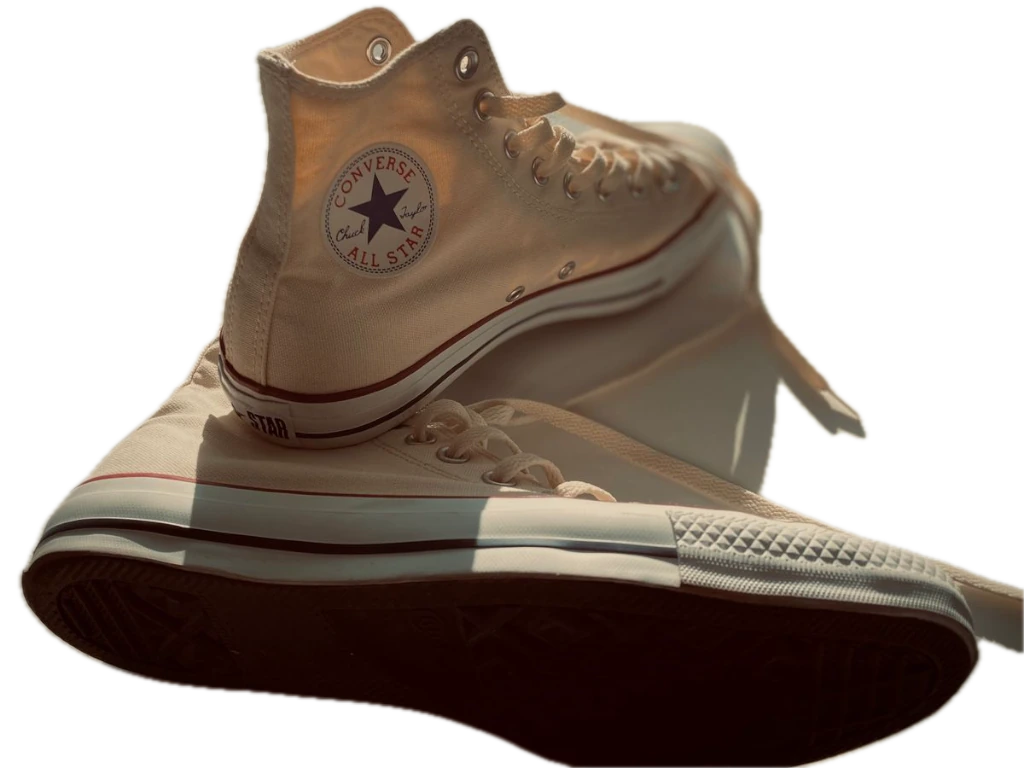
Start Fast · Preview for 3 credits. Compare the result with your original, then inspect fine edges against light and dark preview backgrounds.

Download a transparent PNG to place over another design. For a solid backdrop, choose white or another color and export PNG or JPG. Downloads of completed results use no extra credits.
Explore prepared examples across 7 categories: People, Objects, Products, Cars, Logos, Furniture, and Pets. Each sample shows four stages: Original photo, Cutout example, Color idea, and Layout idea. Final graphic layouts are made in separate design apps.




Prepared illustrations for demonstration. Actual results depend on your photo. Final layouts are created in separate design apps.
Check the cutout, make small adjustments, and choose an output for the place where you will use it.
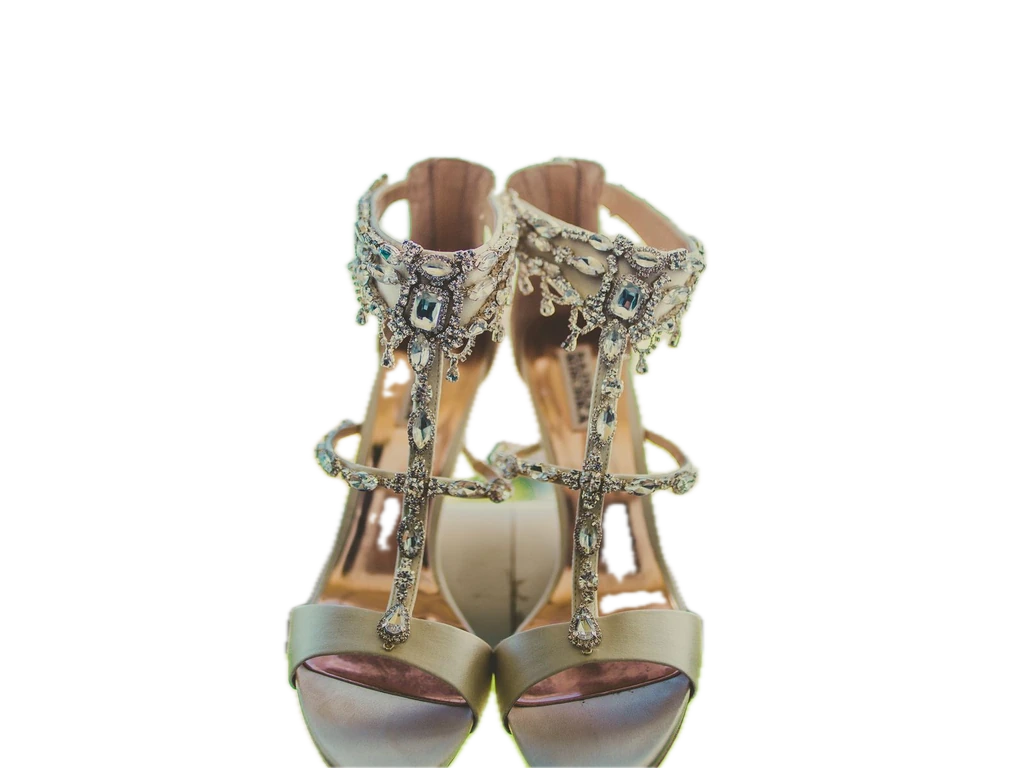
Export your cutout as a PNG with a transparent background to place it over another image or layout.
Switch between light and dark preview backgrounds to spot leftover background, missing edges, and pale details before downloading.
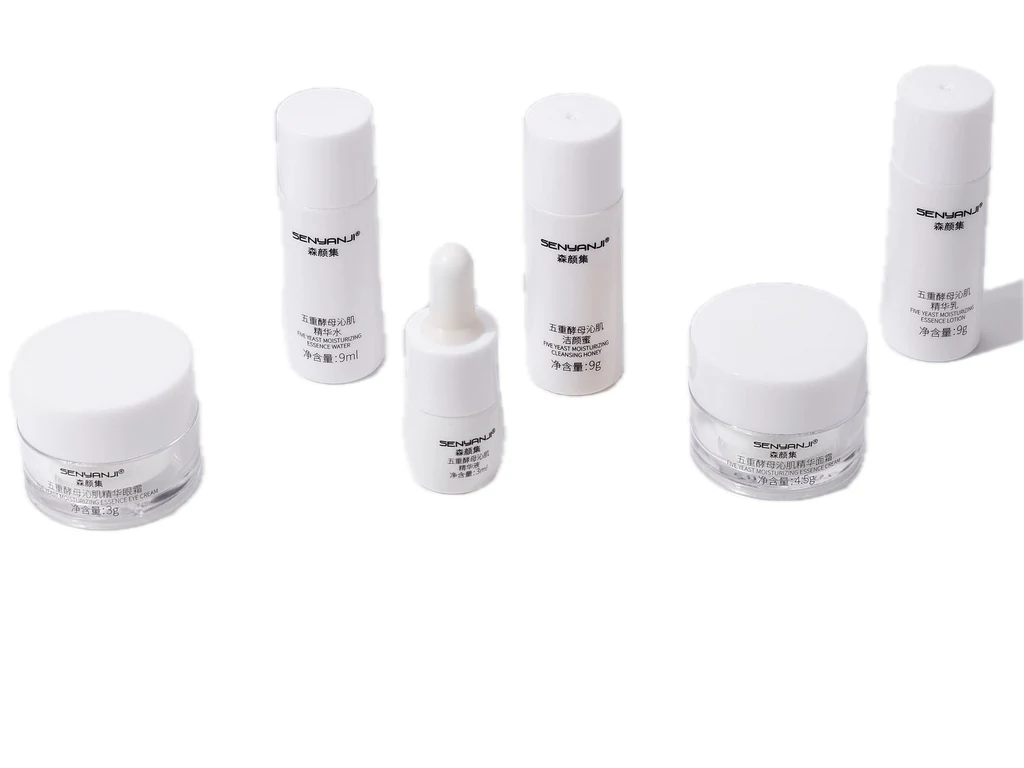
After processing a single image, use the Erase brush to remove unwanted pixels around the subject or inside small gaps.
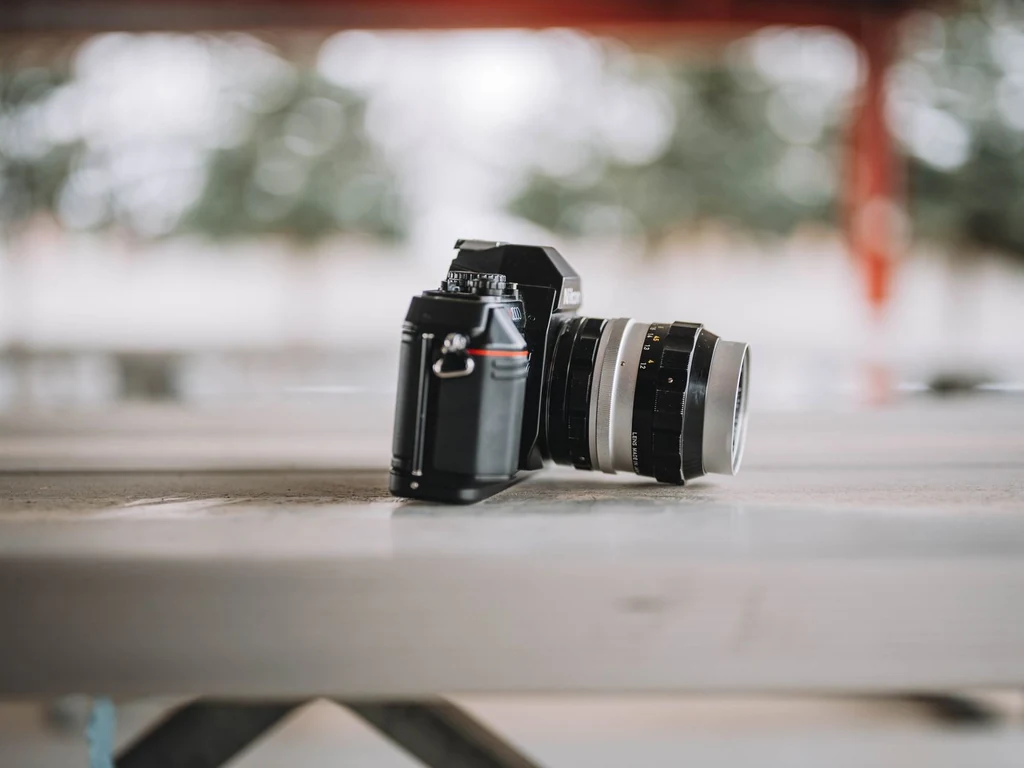
Use Restore to bring back pixels from the original image. It can also restore part of the old background, so check the result after each brush edit.
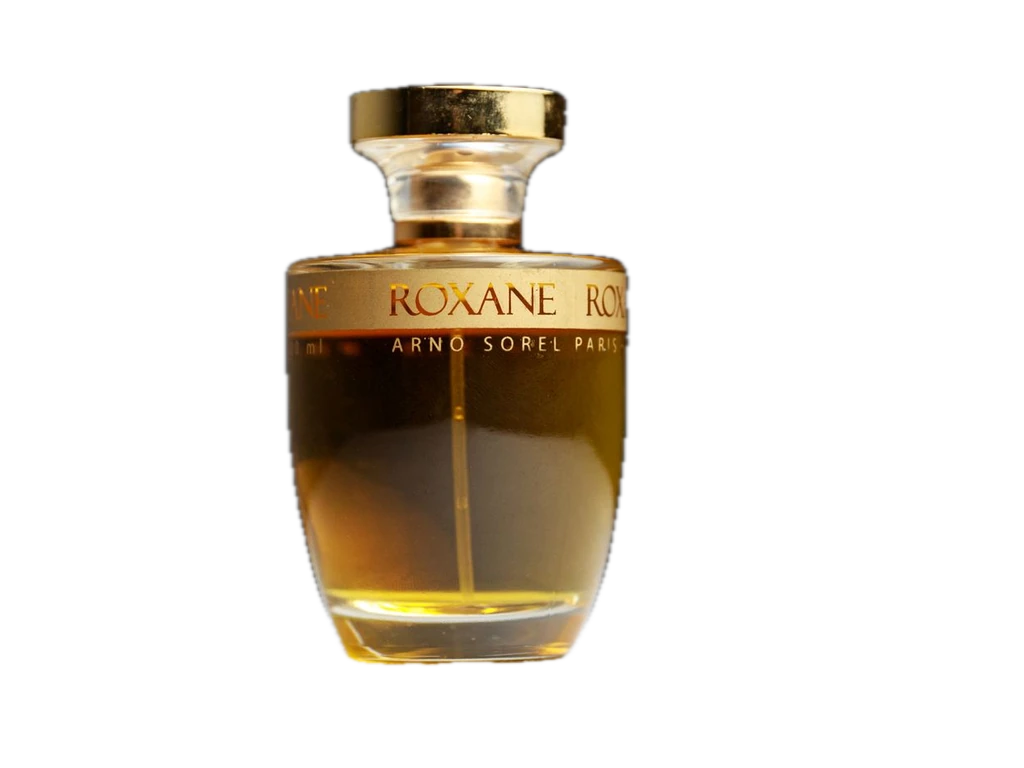
Choose white or another solid color behind the cutout. Export PNG or JPG when you want the background color included in the saved image.

In Background Changer, upload your own background image and adjust the subject size and position before export.
Prepare an image here, then bring it into the projects you already work on.
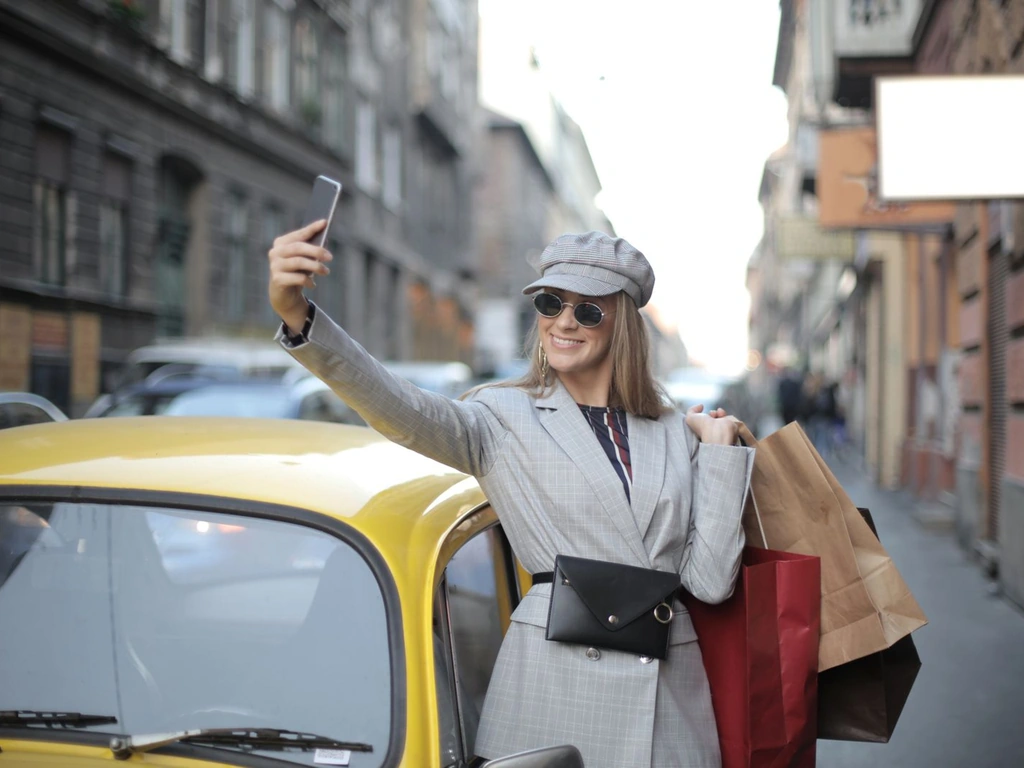
Use the picture background remover for portraits or pet photos, then bring the cutouts into your own cards, invitations, or collages.
Try FremovebgStart with a photo, choose a background finish, and save a result for your next project.
Select, drop, or paste a JPG, PNG, or WebP image to begin in your browser.
Get 5 free credits each UTC day without signing up. One Fast · Preview run uses 3 credits, leaving 2. Your free balance resets at 00:00 UTC; unused daily credits do not roll over.
Export a transparent PNG, add white, or choose a custom color in the editor.
Processing does not overwrite the original file on your device. Keep it alongside your downloaded result.
Inspect hair, jewelry, and clothing outlines on light and dark preview backgrounds before saving.
Download your finished cutout and bring it directly into your preferred publishing or design app.
Use your cutouts to build layouts in your favorite design software:
EXPLORE THE TOOLS
Start with the tool that matches the result you need. All six share the same credit balance.
Remove background from image: Use the BG remover to prepare a photo cutout and download a transparent PNG.
Logo Background Remover: Prepare an existing logo image and check lettering before export.
Signature Background Remover: Crop a signature photo, review the strokes, and save a PNG.
Bulk Background Remover: Queue multiple images and download completed results in a ZIP. Each image uses credits.
Yes. You get 5 free credits each UTC day without signing up. Fast · Preview uses 3 credits per image, so the daily allowance covers 1 image and leaves 2 credits. All tools share this balance; it resets at 00:00 UTC without rollover. Uploads, examples, browser drafts, and downloads of completed results use no extra credits.