1. Upload your subject
Upload your subject photo, then start Fast · Preview for 3 credits to remove the original background.
Change a photo background to suit your layout. Upload the subject photo, remove its backdrop, then choose a solid color or your own background image. Adjust the cutout size and position before downloading.
Real stock photos with prepared background changes. These are not live processing results. Review your own image before saving.
or drop a photo here
JPG, PNG, WebP · up to 10 MB · 40 megapixelsTry an example:
5 free credits daily — enough for 1 image. No sign-up required.
Upload your subject photo, then start Fast · Preview for 3 credits to remove the original background.
Choose a color or select Image to add your own JPG, PNG, or WebP backdrop, up to 10 MB. Adjust Subject size, Horizontal position, and Vertical position with the sliders.
Preview your composite image and download the finished result as a JPG or PNG file.
PORTRAITS & PROFILES
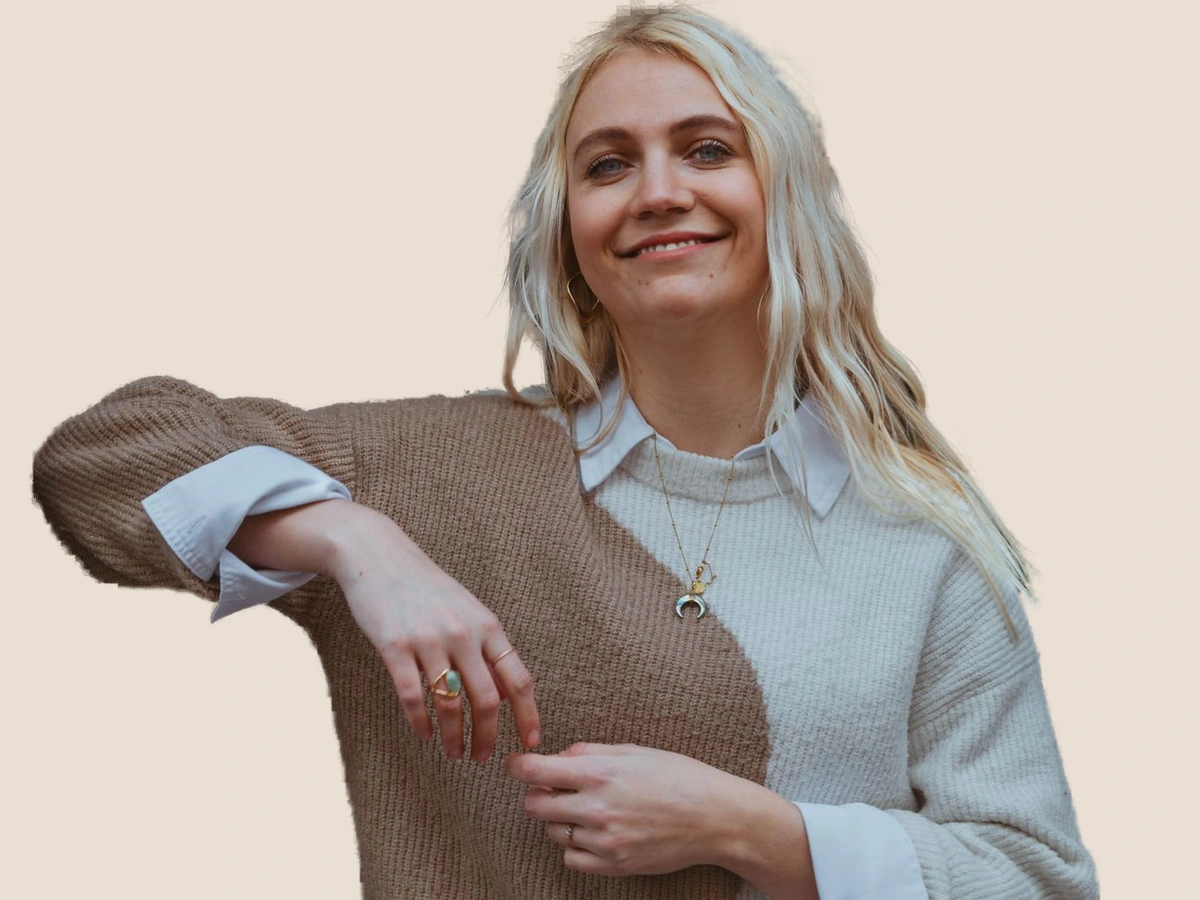
Keep the focus on the person with a quieter backdrop. A soft color can bring portraits taken in different places into the same visual style.
Start with a clear photo and leave room around the hair and shoulders. Compare the face, clothing, and fine hair with the original after processing.
Upload your subjectPRODUCT PRESENTATION
Choose a solid background that fits your collection. A consistent setting makes it easier to compare products in a catalog, shop, or presentation.
Check reflections, openings, and the edge of the product before saving. To prepare a whole group with the same color, use the bulk background remover.
Upload your subjectCOLOR & COMPOSITION
Try a solid color, or select Image in the editor to upload your own background photo. Use a backdrop that leaves enough space for your subject.
Adjust Subject size, Horizontal position, and Vertical position using the existing sliders. Preview the whole composition before downloading your JPG or PNG.
Upload your subjectFROM EDIT TO EVERYDAY USE
Keep transparency for another layout, or save the background you selected.
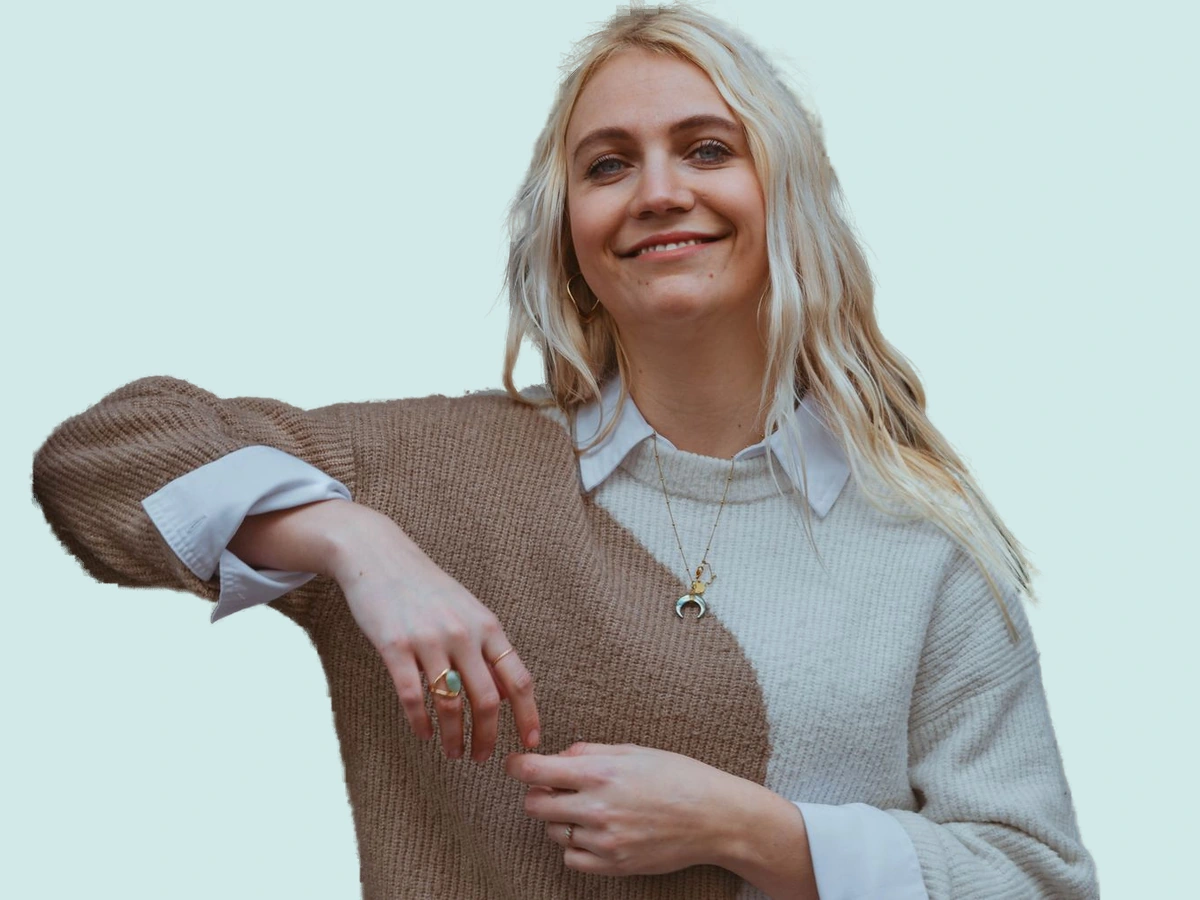 JPG
JPGUse JPG when you want the selected background included in one image for a shop, profile, or presentation.
Upload your subject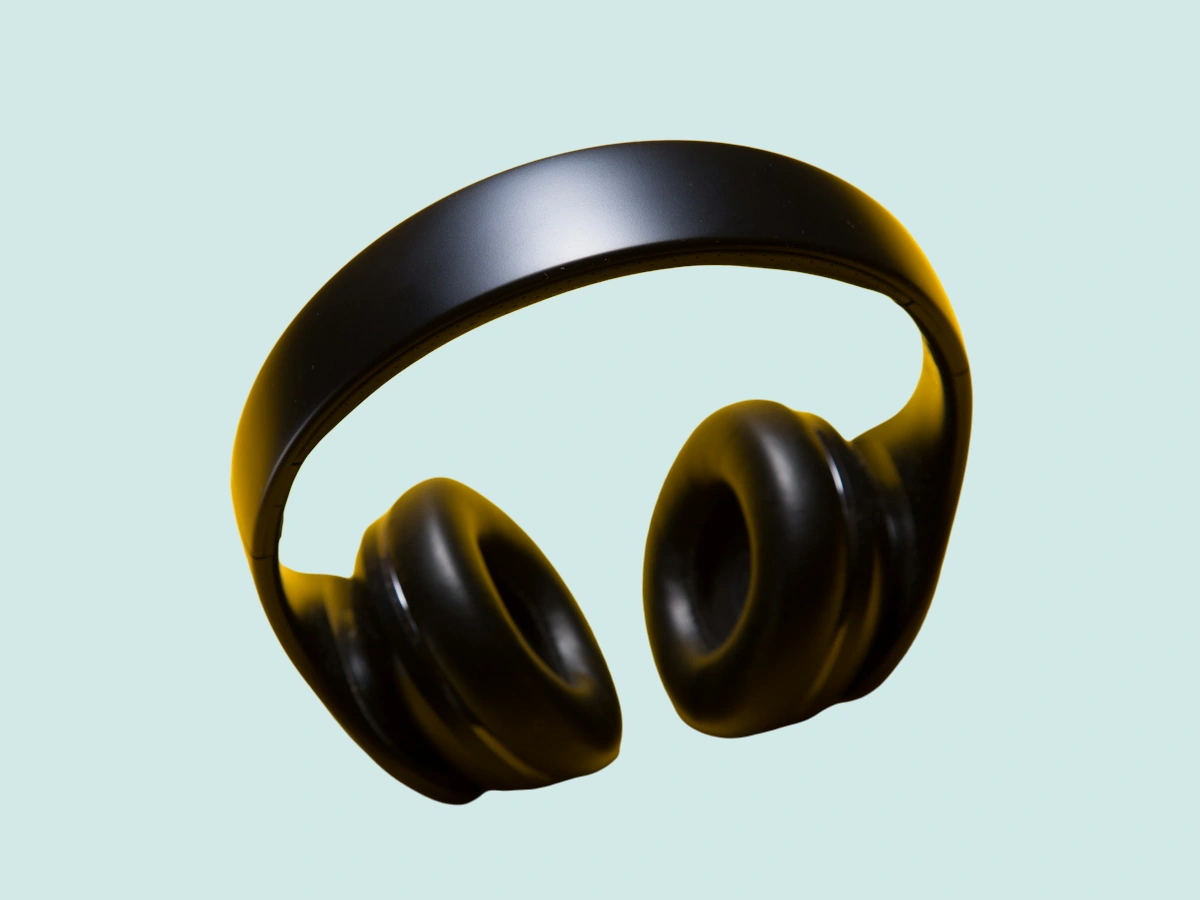 PNG
PNGPNG keeps your selected background in the finished composition without another lossy JPEG compression step.
Upload your subject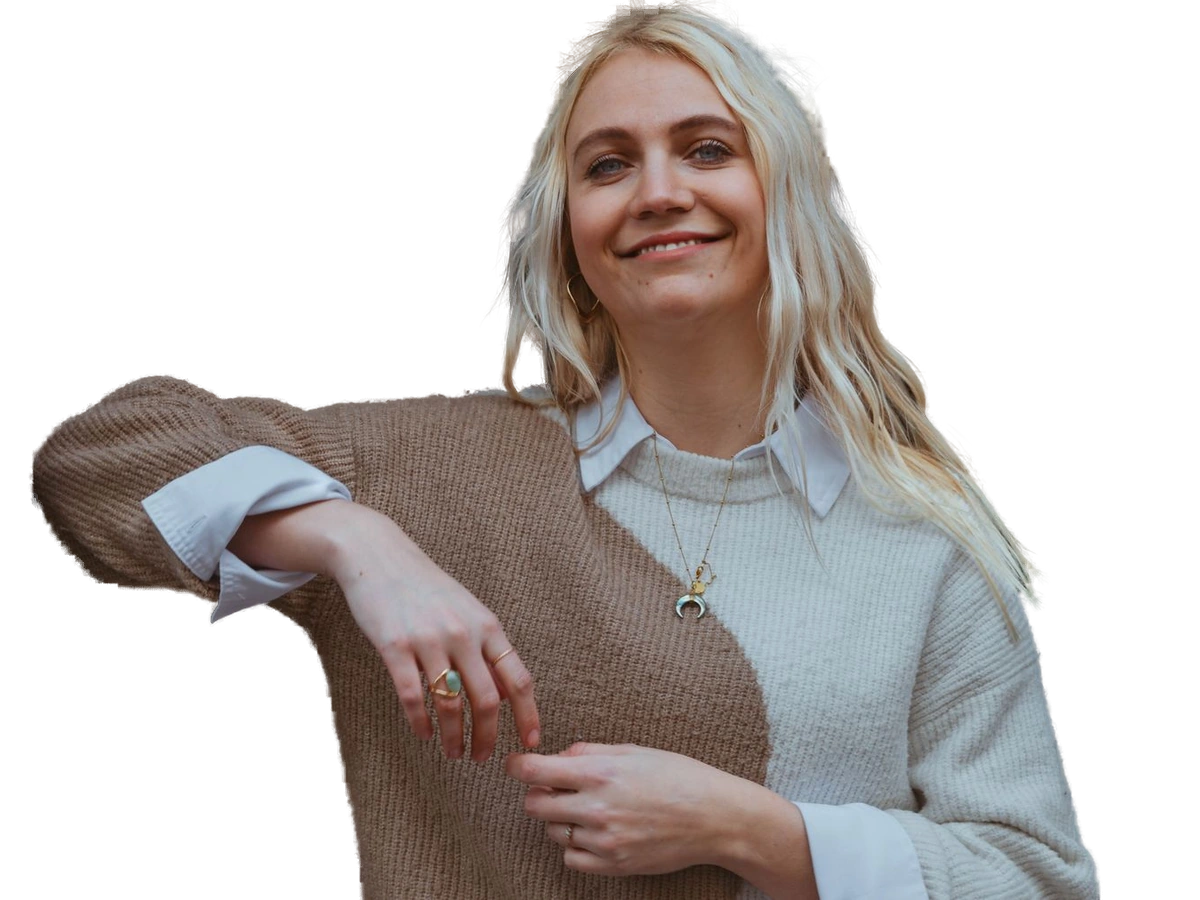 TRANSPARENT PNG
Choose Transparent in the editor to save a PNG cutout. JPG cannot preserve a transparent background.
Upload your subjectPrepared examples illustrate uses of the tool. They are not live processing results.
Download helpYOUR IMAGE, YOUR FINAL CHECK
Work in the same editor, keep the original, and review the result before saving.
Real stock photos with prepared background changes. These are not live processing results. Review your own image before saving.
Upload your subjectThe editor shows available models and credits. The daily 5-credit allowance covers one Fast · Preview image at 3 credits when available.
Return to the same browser to pick up your selected images. Uploading saves a draft without starting paid processing.
Select Image to add a JPG, PNG, or WebP background up to 10 MB. No generated scene is required.
Use the size and position sliders to fit your subject into the selected background.
Use your original image as the reference. AI editing can change details, so review every finished result before downloading.
Downloading a completed result does not use more processing credits. A selected original is not a processed image.
EVERYDAY USES
Bring portraits into a consistent visual style.
Use one background color across a catalog.
Prepare a finished image for the design app you use.
Illustrative use cases · About Fremovebg · Editing help & limitations
Upload your image, review the processing options, and keep your draft in the same workspace.
Upload your subjectEXPLORE THE PHOTO TOOLKIT
Yes. Choose Image in the editor and select a JPG, PNG, or WebP background up to 10 MB. It stays in your browser while you compose the result.
No. This tool replaces the background with your chosen solid color or uploaded image. It does not generate new scenes from text prompts.
Your subject image is sent to our service and an external AI provider for processing. Your chosen background image stays in your browser canvas where the composition is assembled.
Yes. You can select white here, or start in our White Background tool with pure white already selected.
Use the subject size, horizontal position, and vertical position sliders in the editor controls to position your cutout before downloading.